
MCP Server
Connect Claude to the full FocusAlpha data platform via the Model Context Protocol. Our hosted endpoint exposes 16 tools — 13F holdings, insider trades, financial statements, SEC filings, and cited document retrieval — so Claude can pull real data and cite it on its own. One URL, your API key, nothing to install.
The MCP server is hosted at https://mcp.focusalpha.ai/mcp (Streamable HTTP). Every request authenticates with your own fa_live_ API key in the Authorization header, and is metered against your plan exactly like REST — see Authentication and Limits.
Claude.ai (web) — one-click OAuth#
Nothing to install, and no key to copy. You approve the connection with your FocusAlpha login, and a dedicated key is created for it behind the scenes.
- In claude.ai, open Settings → Connectors.
- Click Add (top right), then Add custom connector.
- Give it a name (for example
focusAlpha) and paste the URLhttps://mcp.focusalpha.ai/mcp. Leave the optional OAuth Client ID / Secret fields blank — they’re not needed. - Click Add. Claude opens a FocusAlpha window — sign in if prompted, then click Approve on the consent screen.
- You’re returned to claude.ai and the connector shows as connected. The FocusAlpha tools are now available in any chat.
Claude Desktop — add a connector#
The quickest way: add FocusAlpha as a custom connector, right from Claude’s settings. Three steps — open Customize, go to Connectors, then paste FocusAlpha’s details.
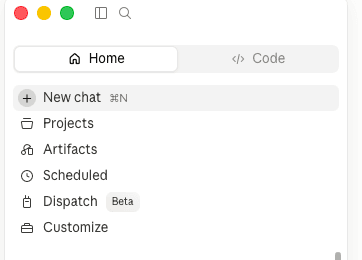
Open Customize from the sidebar
In the left sidebar, scroll to the bottom of the menu and click Customize.
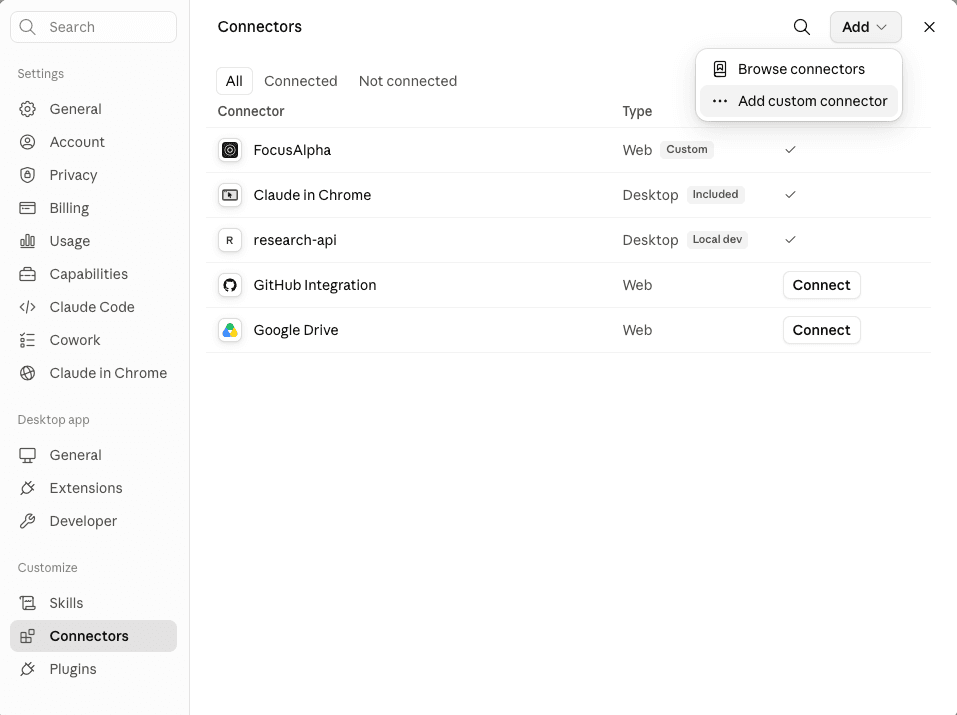
Open Connectors, then add one
Under Customize, select Connectors. Then open the Add menu and choose Add custom connector.
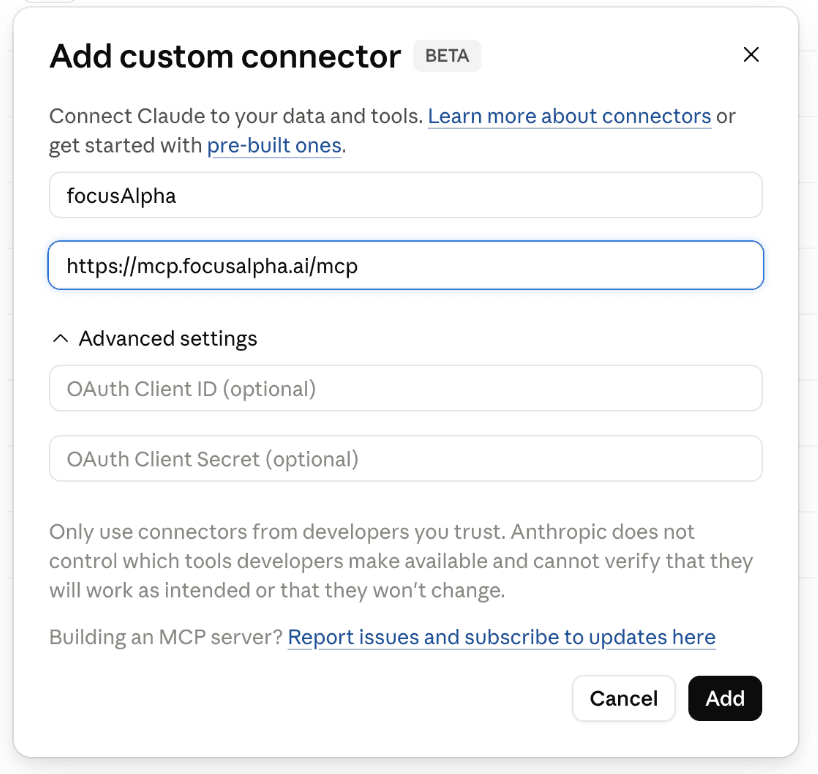
Paste the name & server URL, then Add
In the dialog, fill in the two fields below. Copy and paste each value, then click Add.
Alternative: edit the config file#
Prefer editing JSON? Open Claude Desktop → Settings → Developer → Edit Config, then merge the block below into mcpServers, replacing fa_live_your_key_here with a key from Settings → API keys. Save and fully restart Claude Desktop.
{
  "mcpServers": {
    "focusalpha": {
      "type": "http",
      "url": "https://mcp.focusalpha.ai/mcp",
      "headers": {
        "Authorization": "Bearer fa_live_your_key_here"
      }
    }
  }
}
The config file lives at ~/Library/Application Support/Claude/claude_desktop_config.json on macOS and %APPDATA%\Claude\claude_desktop_config.json on Windows.
Claude Code — API key#
Register the endpoint with one command (create a key first, as above), then start or restart Claude Code:
claude mcp add --transport http focusalpha https://mcp.focusalpha.ai/mcp \
  --header "Authorization: Bearer fa_live_your_key_here"
Verify it connected with claude mcp list — focusalpha should show as connected. Remove it anytime with claude mcp remove focusalpha.
The tools#
The endpoint exposes the whole public data API as tools. Claude decides when to call them and with what arguments; each tool page below documents the underlying REST route and its parameters.
Ownership & insider activity#
get_institutional_holdings— 13F holdings, by investment manager (filer_cik) or by security (ticker), up to 8 quarters of history. See Institutional Holdings.get_insider_trades— SEC Form 4 insider transactions for a ticker, roughly two years of history. See Insider Trades.
Financials#
get_income_statements/get_balance_sheets/get_cash_flow_statements/get_all_financials— statements by ticker or CIK, annual / quarterly / TTM. See Financials.get_financial_metrics— computed metrics and ratios per period. See Financial Metrics.get_segmented_financials— as-reported business / geographic segment breakdowns. See Segments.
Filings & reference#
get_filings— the SEC filing index for a company, filterable by form type and date. See Filings.get_filing_items— split a 10-K / 10-Q / 8-K into its items with full text. See Filing Items.get_company_facts— issuer reference data. See Company Facts.list_coverage— which tickers, CIKs, and form types are available per dataset.
Retrieval & documents#
retrieve— semantic search over SEC filings and earnings-call transcripts; returns cited source passages, not a generated answer. See Retrieve.list_documents/get_document/get_document_segments— browse the document corpus behind retrieval. See Documents.
Example prompt#
Once connected, just ask Claude naturally:
Who are Apple's largest institutional holders this quarter, and how
has Berkshire's position changed over the past year? Then pull Apple's
last two annual income statements and summarize the revenue trend.
Claude chains get_institutional_holdings and get_income_statements calls on its own, reads the data, and answers with the numbers — no API plumbing on your side.
Errors, quotas, and rate limits#
Tool calls surface the same error semantics as REST, so Claude (and you) can tell failure modes apart: 401 means the key is missing or invalid, 402 means a plan quota was exceeded on a dataset route, and 429 means the retrieval rate limit was hit. Details in Errors and Limits.
fa_live_7Fb3), never the full key. Rotate your key if it’s ever exposed.